Redmine DB
Assets and structured data where your projects are
AlphaNodes online training, about 5 minutes
What the plugin does
Redmine DB stores structured records in your projects: devices, licences, contracts, servers, contacts, whatever a spreadsheet holds today.
- You define the structure once as DB types with custom fields
- Entries behave like issues: filters, saved queries, watchers, history, attachments
- Everyone works on the same current data, with permissions per role
Types, entries, fields
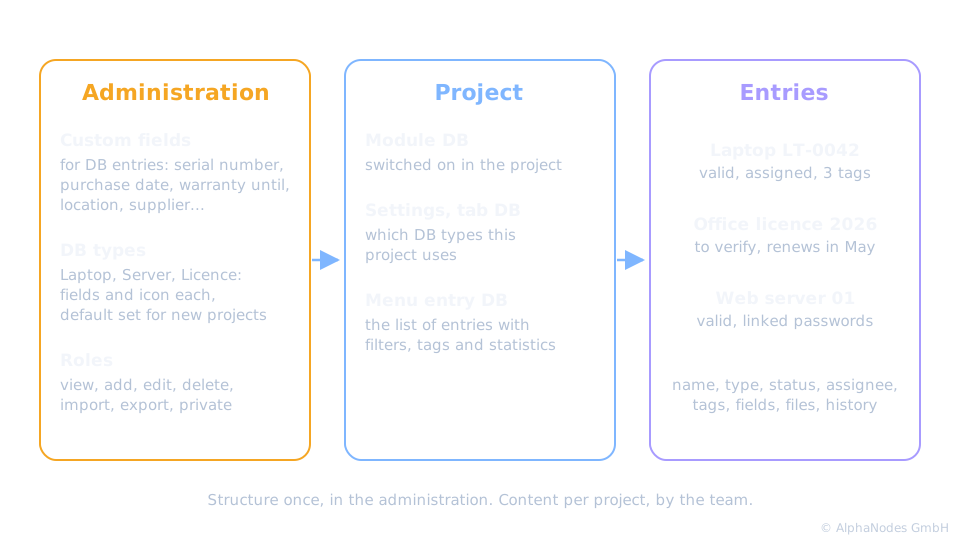
DB types
- Created in Administration, DB, tab Types: name, icon, icon color, description
- Each type chooses its custom fields and which standard fields it shows
- Activated per project, with a default set for new projects
Typical types: servers, laptops, software licences, SSL certificates, service contracts, inventory.
Anatomy of a DB entry
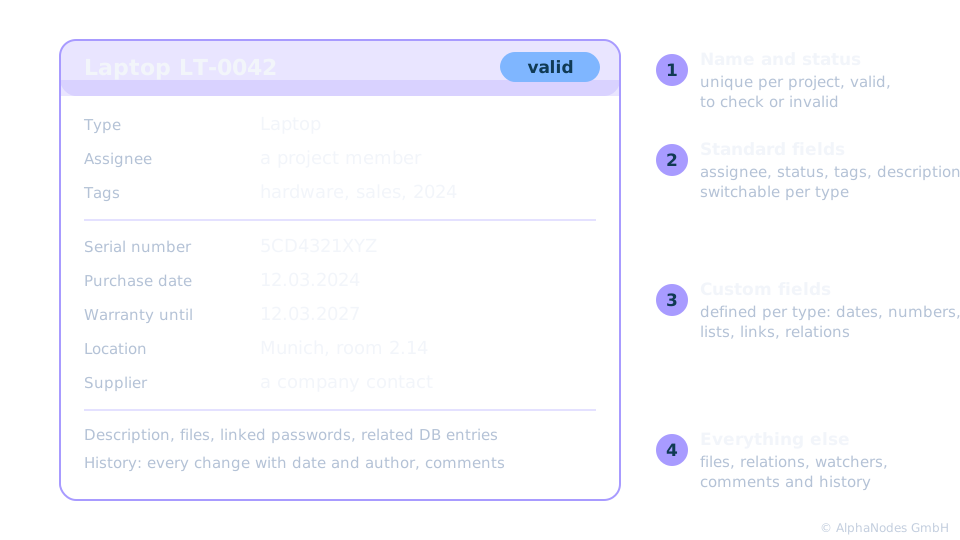
Custom fields make it fit
- Formats: text, long text, date, boolean, integer, float, link, list, key value list, file
- Plugin formats: DB entry, and with the matching plugins project relation, company, contact, password, user and wiki page
- Fields can be searchable and usable as filters and columns
Status, private entries and tags
- Status valid, to verify or invalid: the list shows valid entries by default, the rest stays available via the filter
- Private entries are seen by their author, the assigned user or group, roles with Show private DB entries and administrators
- Tags group entries across types, the tag cloud sits in the sidebar
Finding things
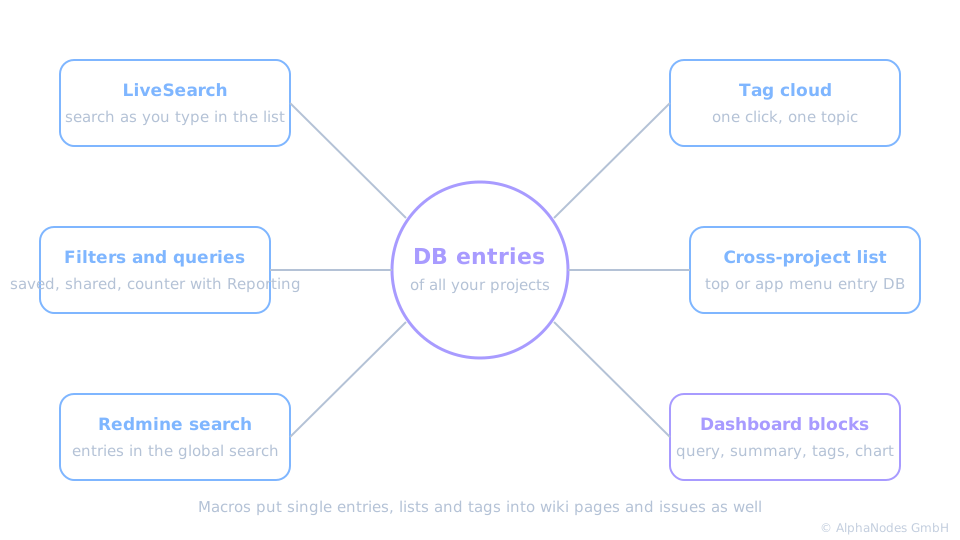
Lists, filters and the overview
- Filters by status, type, tags, author, assignee, watcher, dates and every filterable custom field
- Saved queries per project or for all projects, as list, dashboard block or with Reporting as counter box
- Cross-project list in the top or app menu with every entry you may see
- Export as CSV, XLSX and Atom, import from CSV
Getting started
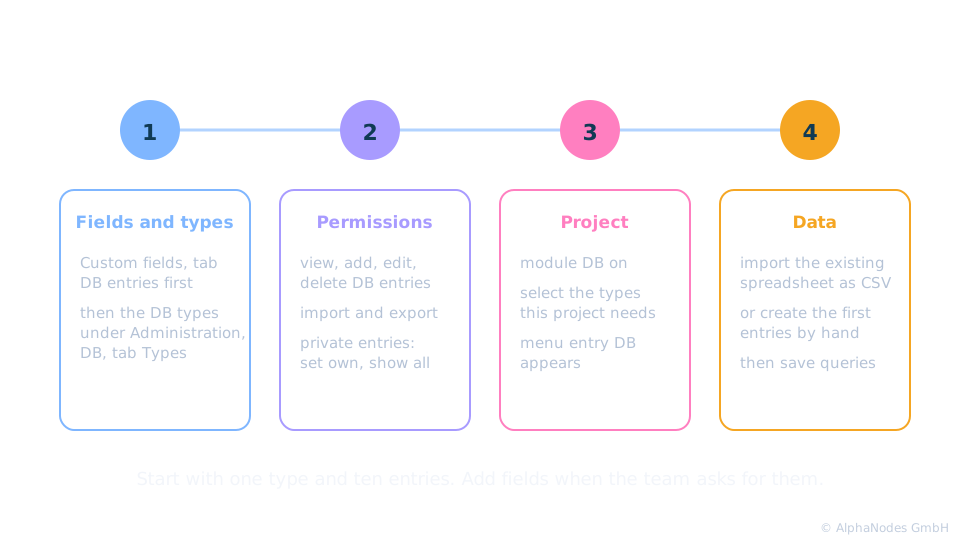
Four steps
- Create the custom fields under Administration, Custom fields, DB entries, then the DB types that use them
- Give the roles their permissions: view, add, edit, delete, import, export, private entries
- Activate the module DB in the project and select the types
- Import the existing spreadsheet as CSV or create the first entries by hand
In short
Define the structure once, let the team fill and filter it, retire the spreadsheet.
Works together with
- Passwords plugin: link passwords to the device or service they belong to
- ServiceDesk plugin: companies and contacts as fields of an entry
- Reporting plugin: counter boxes for DB queries on dashboards
- Automation plugin: rules on DB entries, for example reminders before a contract ends
Redmine DB is part of the Enterprise+ bundle, also available on its own.
See it live
Try the plugin in our online demo
Product page · Back to online training
© AlphaNodes GmbH, all rights reserved