Redmine ServiceDesk
Customer support inside Redmine
AlphaNodes online training, about 5 minutes
What the plugin does
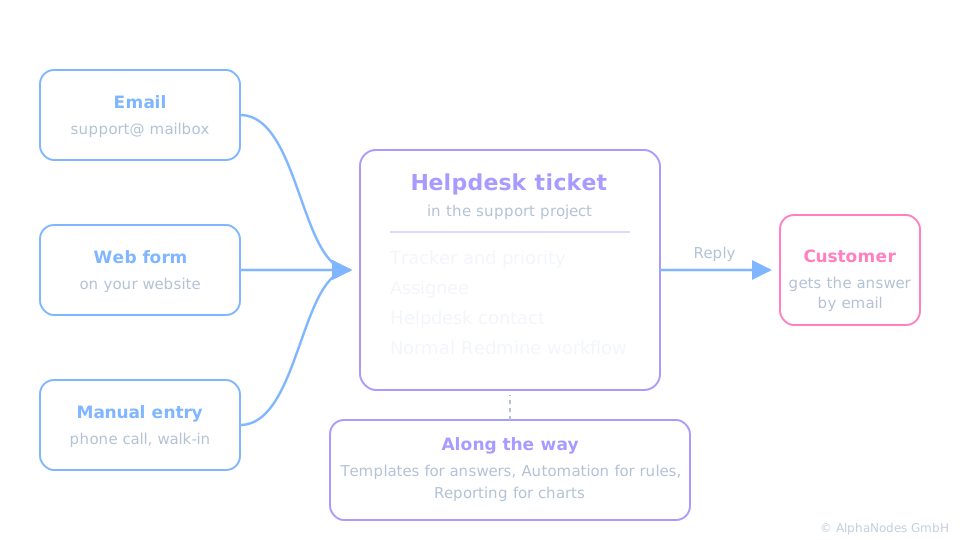
ServiceDesk turns Redmine into the central point of contact for requests that arrive by email or web form.
- Every request becomes a helpdesk ticket in a project of your choice
- Tickets run through the normal Redmine workflow: assign, prioritise, resolve
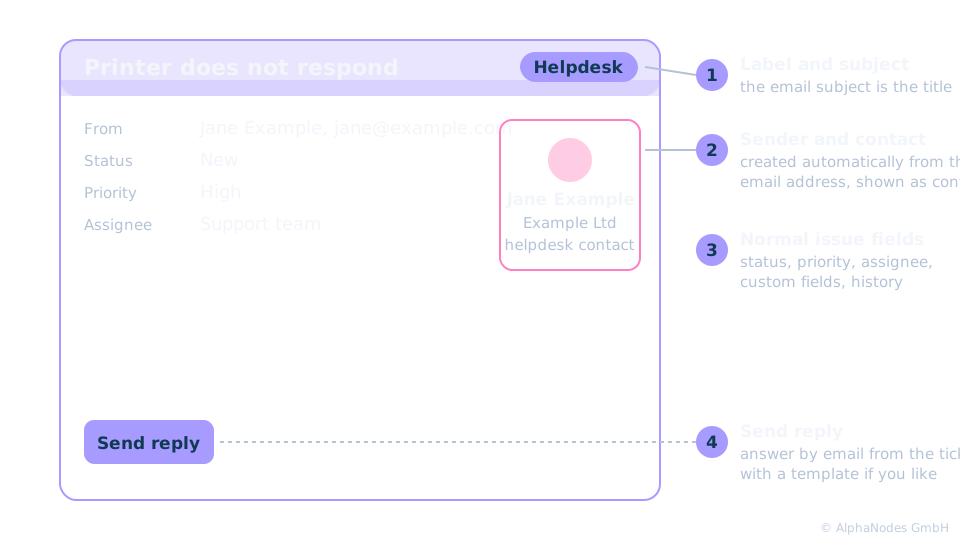
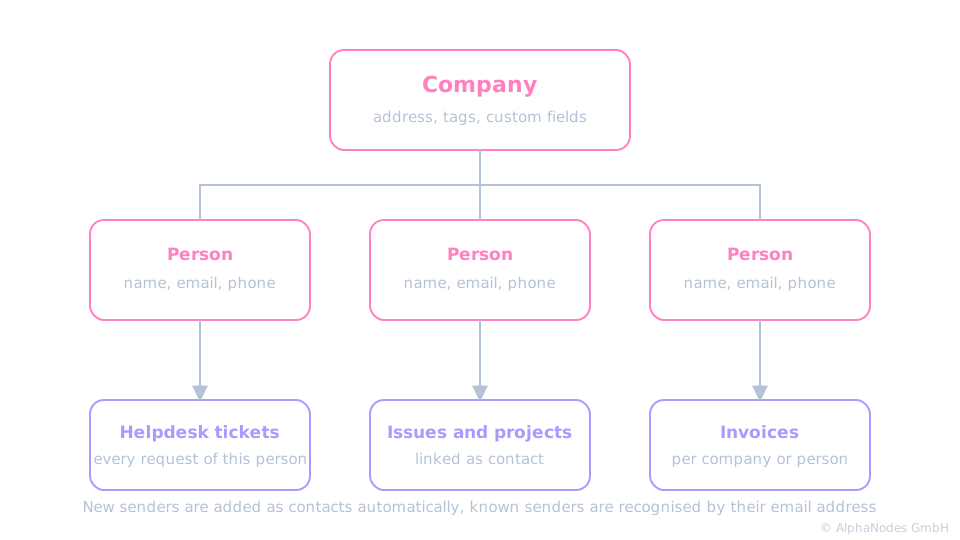
- The sender is kept as a contact, the answer goes out straight from the ticket
How a request becomes a ticket
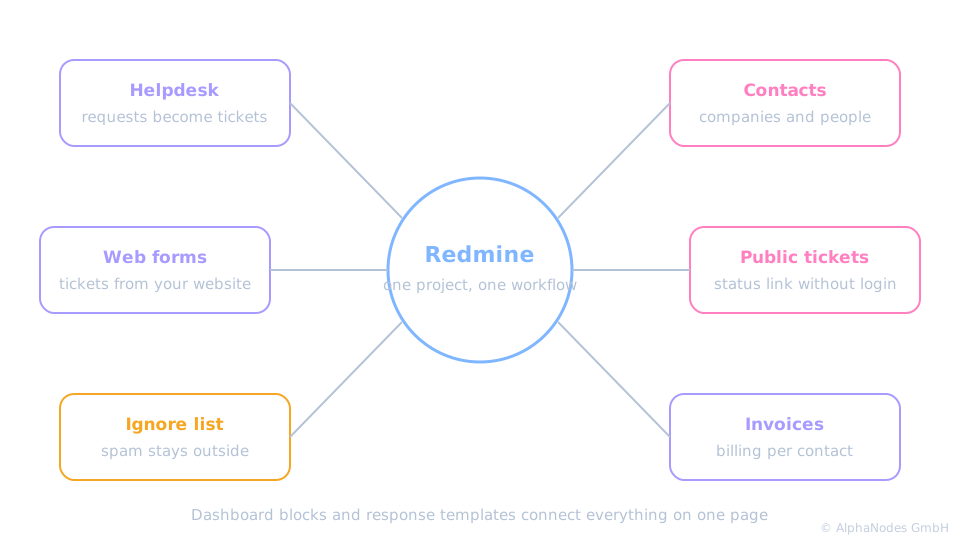
Building blocks of the plugin
Anatomy of a helpdesk ticket
Contacts: companies and people
Response templates
- Prepared answers for recurring questions, selected directly in the reply form
- Variables fill in ticket number, contact name, public ticket link and more
- Private, for groups or public, per project or for the whole system
Response templates are managed in the separate Redmine Templates plugin. Existing canned responses can be transferred with a migration step by the administrator.
Keep the noise out
- Ignore list: addresses, domains and subjects that never create tickets, with a counter per entry
- Mark a sender as spam right from the ticket, further mails from that address are blocked
- Nothing enters unseen: every ticket comes from a mailbox, a form, manual entry or the API
Web forms and public tickets
- HTML forms on your website create helpdesk tickets with the fields you define
- Public tickets: the sender follows the status via a link, without a Redmine login
- The public link is available as a template variable for the reply
Overview for the team
- A helpdesk information block on the project dashboard, query blocks wherever you like
- Custom fields such as a resolution area make requests countable
- Charts and evaluations come from the Reporting plugin
Getting started
Four steps to a working helpdesk
The four steps
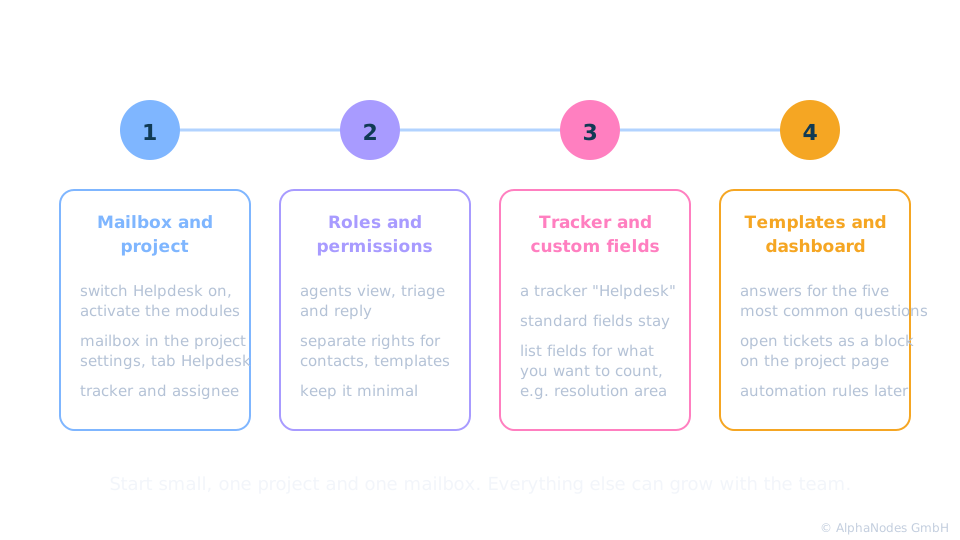
Step 1: Mailbox and project
- Switch on Helpdesk in the plugin settings, activate the modules Helpdesk and Contacts in the project
- Connect the mailbox in the project settings, tab Helpdesk: incoming and outgoing mail server
- Define tracker, author and assignee for new tickets, plus the status on reply and on reopening
One mailbox for several projects: use email aliases, mail arrives in one helpdesk project and Automation rules move the tickets.
Step 2: Roles and permissions
- Agents need to view, triage and reply to helpdesk tickets
- Contacts and templates have their own permissions
- Keep it minimal: only administrators need everything
Step 3: Tracker and custom fields
- Use a dedicated tracker such as "Helpdesk"
- Keep the standard fields: subject, status, priority, assignee
- Add list fields for what you want to count later, for example a resolution area
Prefer dropdown lists over free text. Lists can be filtered, charted and standardised.
Step 4: Templates and dashboard
- Prepare response templates for the five most common questions
- Put the open helpdesk tickets as a block on the project dashboard
- Switch on auto-close for inactive tickets in the plugin settings, add Automation rules for reminders later
In short
Collect every request in one place, answer from the ticket, keep the history.
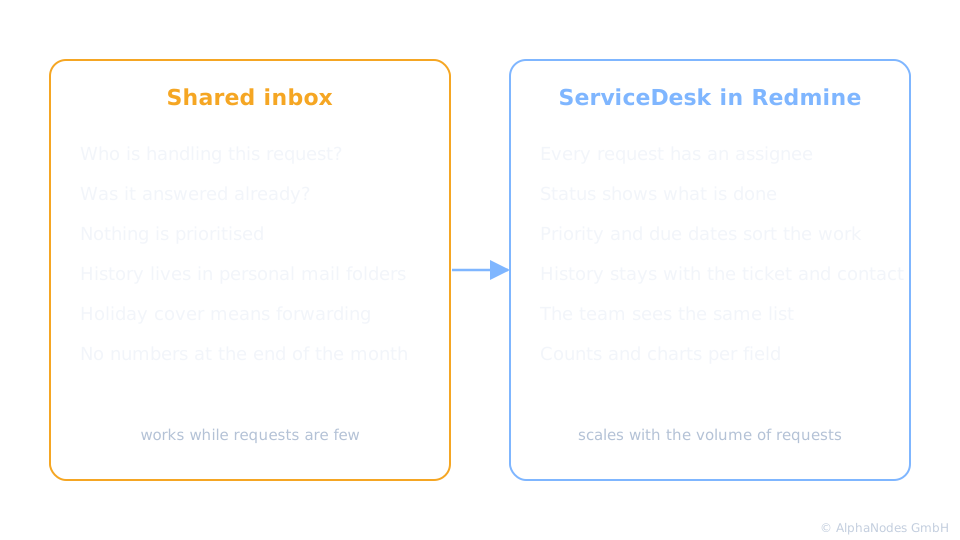
When to switch from a shared inbox
Requirements
- Redmine with the AlphaNodes plugins Reporting and Automation
- Response templates need the Templates plugin
- All of them are part of the Enterprise+ bundle
Check the current version requirements on the product page before installing.
See it live
Try the plugin in our online demo
Product page · Back to online training
© AlphaNodes GmbH, all rights reserved