
“Something looks different and suddenly doesn’t work anymore.” We hear this sentence in support every now and then. Usually there’s no bug behind it, but rather Redmine’s permission system - an area many teams have never touched deliberately since the initial installation. As long as everything runs, nobody notices. But as soon as something changes, for example after an update or when creating a new role, the guessing game begins.
This article is aimed at Redmine administrators and project leads who want to improve their permission system (you don’t need deep technical knowledge for it). We explain how the permission system is built and give you a compact list of do’s and don’ts for a concept that stays understandable and future-proof.
Why does this matter for Redmine administrators?
A clean role concept keeps your Redmine clear - even as new projects and people come on board. Unclear permissions cost you time with every follow-up question. And they’re a security topic: if someone can see or do more than intended, it often surfaces late. Set the permissions up deliberately once and document them briefly, and later you save yourself the guessing game from the start.
The two levels where most setups go wrong
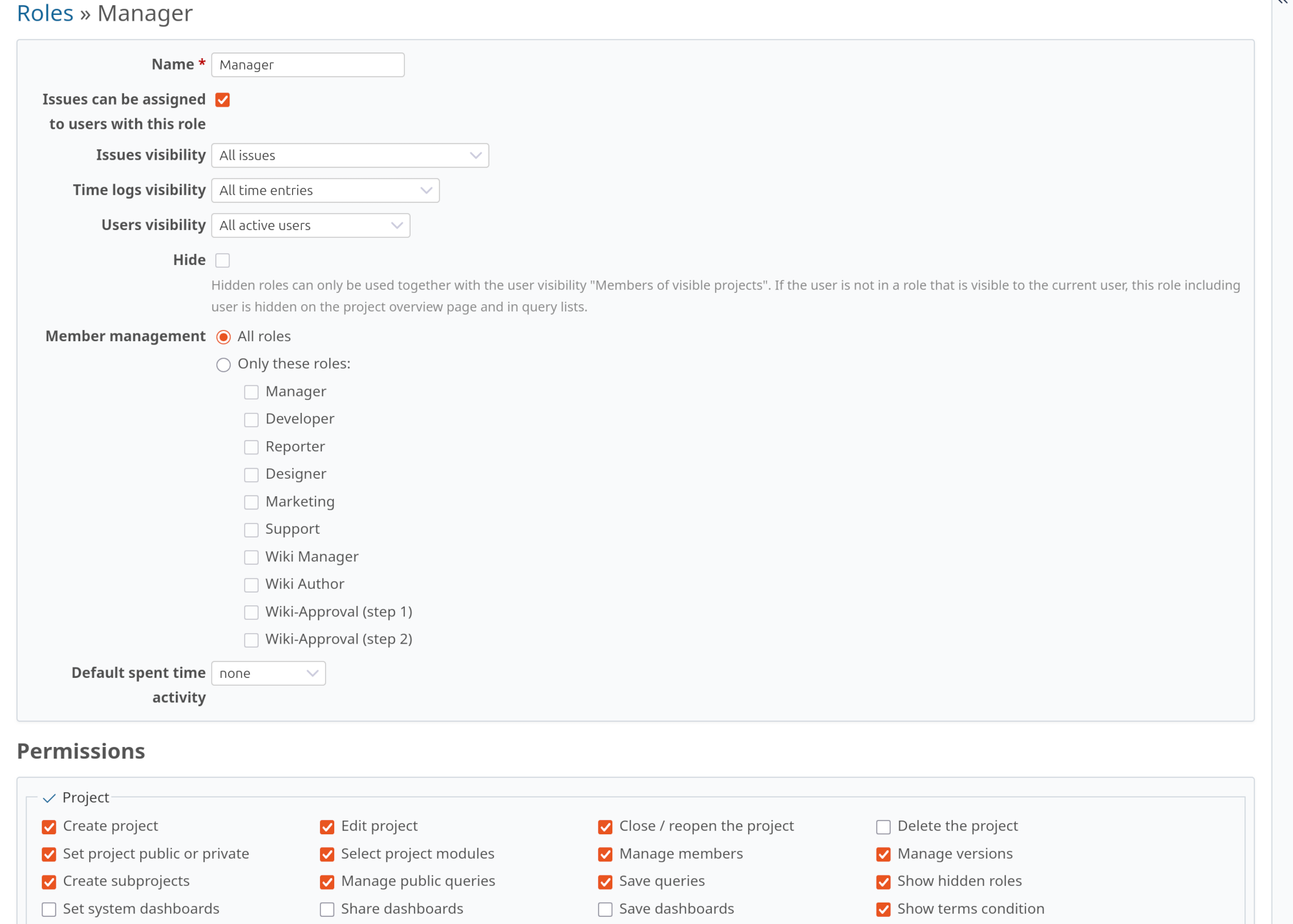
Redmine doesn’t assign permissions to individual people, but to roles. A role is defined once, centrally, under Administration -> Roles and permissions. At its core, it’s a collection of permissions. A person is then assigned this role per project, and that’s how its permissions take effect. The key question is where a permission actually applies:
Most permissions are evaluated per project. They control what a role is allowed to do within a specific project: view issues, edit issues, maintain the wiki, upload files and so on. They only apply in the projects where the person has been assigned the role. So the same person can be allowed to do more in project A than in project B - depending on the role assigned there.
Only a few permissions apply system-wide (global). They aren’t tied to a single project. The best-known example is Create project: anyone whose role includes this permission may create new projects, independent of any existing project. Managing an existing project - editing it, closing it or managing members - is project-specific instead: you grant these permissions per role, and they only apply in the projects where someone holds that role. In practice this often sits in the Manager role. On top of that, whoever creates a project is automatically given a defined role in it - in many installations Manager (configurable in the project settings) - and may therefore manage their project afterwards.
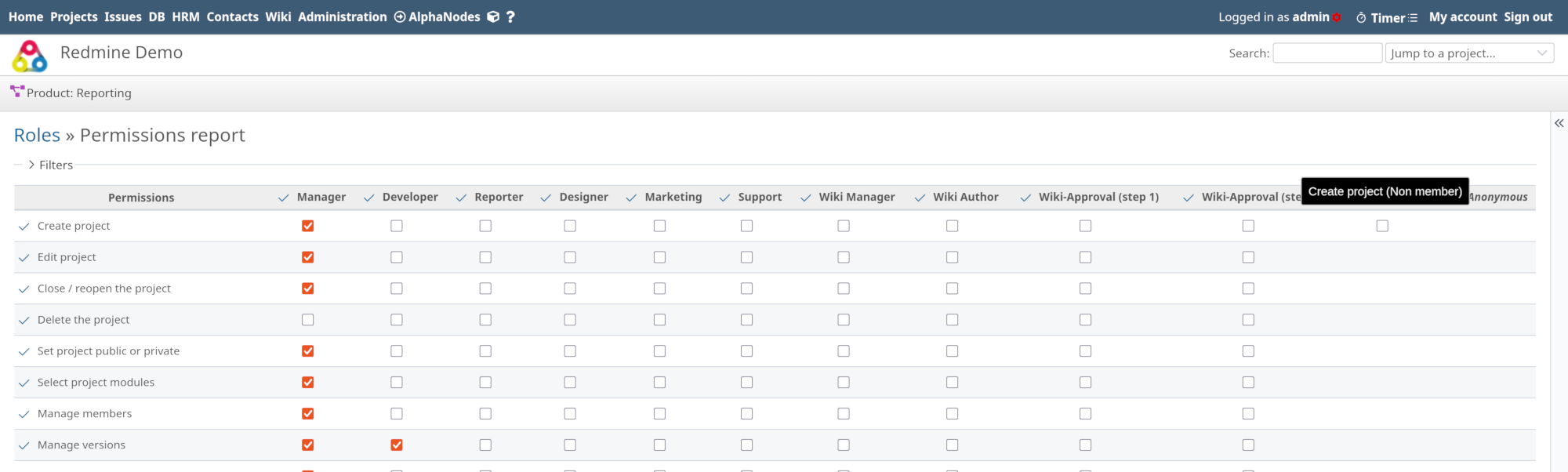
A good overall view is provided by the Permissions report under Administration -> Roles and permissions. There you see all roles and their permissions side by side as a matrix, and you spot at a glance where a role can do more or less than intended.
The third, often overlooked point:
- A permission only takes effect if the corresponding module is enabled in the project. If you’ve disabled the wiki module in a project, the wiki permission is useless. This is exactly where the most common confusion arises - the permission is set, but the feature doesn’t show up because the module is missing.
Special case Non-member and Anonymous: These two built-in roles cause uncertainty especially often, because they behave differently from normal project roles. You don’t assign them to anyone manually; they apply automatically and only in public projects. Non-member applies to logged-in users who aren’t a member of the project; this can be relevant internally too, when a project should be visible to all employees. Anonymous, on the other hand, applies to visitors who aren’t logged in at all, and only takes effect if anonymous access is allowed in the first place (the Authentication required setting is disabled). In an internal, privacy-conscious Redmine that’s usually not the case - then the Anonymous role has no effect and is more of a topic for publicly accessible Redmine instances. Be sparing with both anyway: whatever you allow here applies to everyone.
Do’s
Work by the least-privilege principle. Start narrow and expand deliberately when a need arises. That’s much easier than figuring out later why a role has permissions nobody can justify anymore.
Don’t work with administrator rights day to day. In Redmine, an administrator bypasses all permission checks - everything always works for them, no matter how the roles are set. So they never notice a mistake in the permissions. The affected user, in turn, doesn’t even know what they should be able to do and therefore doesn’t report it - or they simply write off the whole system as bad, when really it’s just the configuration that’s off. So get into the habit of working with a normal user account and checking changes that way. With your background knowledge, you’re the most likely to spot when something doesn’t behave the way you intended.
Less is more - don’t map every company position one to one. Just because the org chart has a team lead, a department head and three divisions doesn’t mean Redmine needs a separate role for each of these positions. Redmine roles are based on activities in the project, not on job titles. Often a few well-cut roles cover what would otherwise end up as a dozen barely distinguishable roles. The fewer roles you have to maintain, the easier the whole thing stays to follow.
Name roles after their function - and stick to it. A role called “Manager with delete rights” should actually be allowed to delete. Sounds obvious, but in practice it isn’t: we regularly see role names that promise a permission that isn’t actually set. At the latest during the next audit, that costs time and nerves.
After every plugin update, briefly check the permissions. Updates can introduce new permissions or re-sort existing ones. A quick look at the affected roles saves you the follow-up question “why is this different now?”.
Document your role concept properly once. A brief overview of which role is meant for what is enough. It helps everyone who joins later - and yourself, when a year from now you no longer remember why you decided what.
Don’ts
Don’t pile everything into one catch-all role. A single “employee” role that’s allowed to do everything is convenient, but not controllable. As soon as someone should be allowed to do a little less, you have to build a second role and you’re back at the start.
Don’t infer permissions from someone’s position. A managing director doesn’t automatically need administrator rights in Redmine, or get to do everything, just because they’re at the top. Don’t ask “what position does the person hold?”, but “what does the person need to do in Redmine to fulfill their job?”. Permissions should support the function in the company, not mirror the rank.
Important: in Redmine the administrator status is not a role, but a separate switch in the user profile. It bypasses the entire roles and permissions system and should only go to people who actually administer Redmine - not to those with the highest rank.
Avoid two almost identically named roles with different permissions. Often there’s a good reason for two similar roles - for example internal and external developers who should be allowed to do different things. But then they tend to be called “Development” and “Development staff”, and after a few months nobody knows which is which anymore. If the difference matters, make it unambiguous in the name - for example “Development internal” and “Development external”. That way the actual reason sits right in the role name.
Don’t randomly change permissions in live operation. Test changes on a non-critical test project, or at least with a test role, before you roll them out system-wide.
What a simple role concept could look like
So that a team can see which role is allowed to do what, you work out a role concept and ideally publish it on a Redmine wiki page that’s accessible to everyone. Ideally, the roles are named after their function and the permissions build up from one role to the next.
| Area | Permission | Reporter | Developer | Manager |
|---|---|---|---|---|
| Issues | View issues | ✓ | ✓ | ✓ |
| Issues | Add issues | ✓ | ✓ | ✓ |
| Issues | Add notes | ✓ | ✓ | ✓ |
| Issues | Edit issues | - | ✓ | ✓ |
| Issues | Delete issues | - | - | ✓ |
| Time tracking | Log spent time | - | ✓ | ✓ |
| Wiki | Edit wiki pages | - | ✓ | ✓ |
| Files | Manage files | - | ✓ | ✓ |
| Project | Edit project | - | - | ✓ |
| Project | Manage members | - | - | ✓ |
| Project | Manage versions | - | - | ✓ |
Delete issues: Redmine is also a place to look back at what happened in a project, when and how - deleted issues tear holes in that history. Deleting therefore always belongs in manager or even admin hands.
Plugins bring their own permissions
If you use commercial plugins, you should know that they usually bring their own permission sections. The Templates Plugin, for example, has its own section that’s controlled in addition to the standard permissions. The ServiceDesk Plugin behaves similarly. After an installation or an update, it’s therefore worth looking not only at the standard permissions, but also at the plugin-specific sections under Administration -> Roles and permissions.
Get to a concept faster with the Redmine AI Plugin
If you already work with our Redmine AI Plugin, you can have the assistant draft a concept like this for you. You describe your teams and their tasks right inside Redmine, and it returns a first, layered proposal based on least privilege - including a permission matrix. The setup still happens by hand; the draft is your starting point.
Such a starting prompt could look like this:
Help me design a roles and permissions concept for our Redmine. Work by the least-privilege principle. Our groups: internal developers (work actively on issues, log time), external developers (temporarily in the same project, should only see their own issues, no other people’s time entries, no deleting), project leads. Suggest layered roles named by function, list the concrete Redmine permissions per role, grant delete permissions to managers/admins only, and output the result as a permission matrix.
Don’t adopt the proposal blindly: compare it against the do’s and don’ts from this article and test it with a normal user account. The AI Plugin is available as an add-on to our Managed Redmine Hosting.
Conclusion
Redmine’s permission system is powerful, but it’s no rocket science - provided you treat it deliberately instead of just letting it run. Set up a clear, documented role concept once and double-check it briefly after updates, and you spare yourself exactly the guessing game this article started with.