
If you work with many tickets in Redmine, you know the situation: When asked “Where do we stand with our tasks?” endless scrolling through long lists often follows. The Taskboard in the Reporting Plugin solves this problem with a simple idea: It makes workflows visible - regardless of methodology or department. It works for support, development, PM, HR, marketing - for every workflow.
What is the Taskboard?
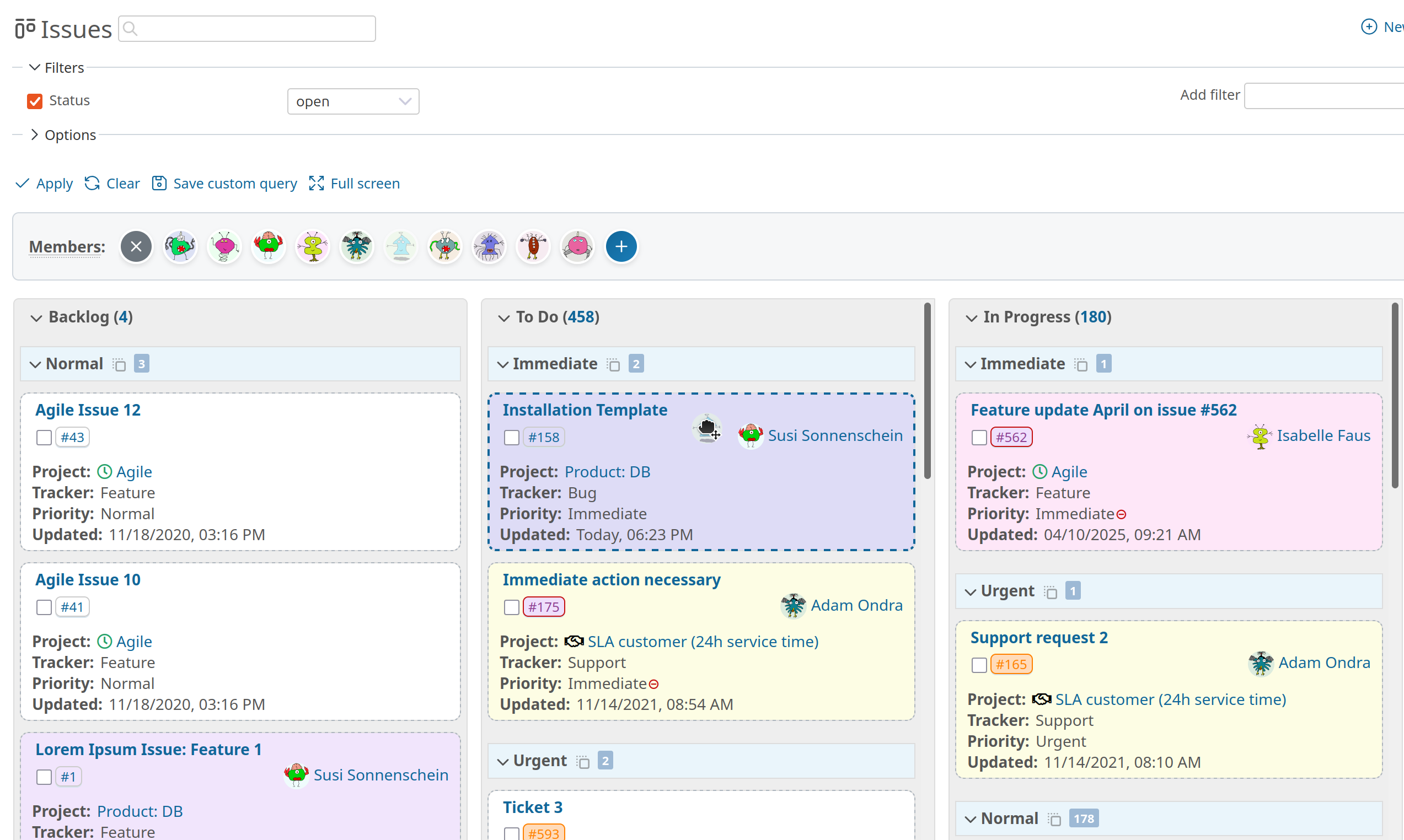
The Kanban board of the Reporting Plugin visualizes your tickets as cards, organized in columns by status. Instead of scrolling through lists, you see at a glance: What’s new? What’s being worked on? What’s waiting for feedback? The basic function is simple but effective: You drag tickets via drag & drop between columns to change their status.
This visualization works with your existing Redmine workflows. You don’t need to introduce new methodology or change processes. The board uses the statuses you’ve already configured.
Customizable Display
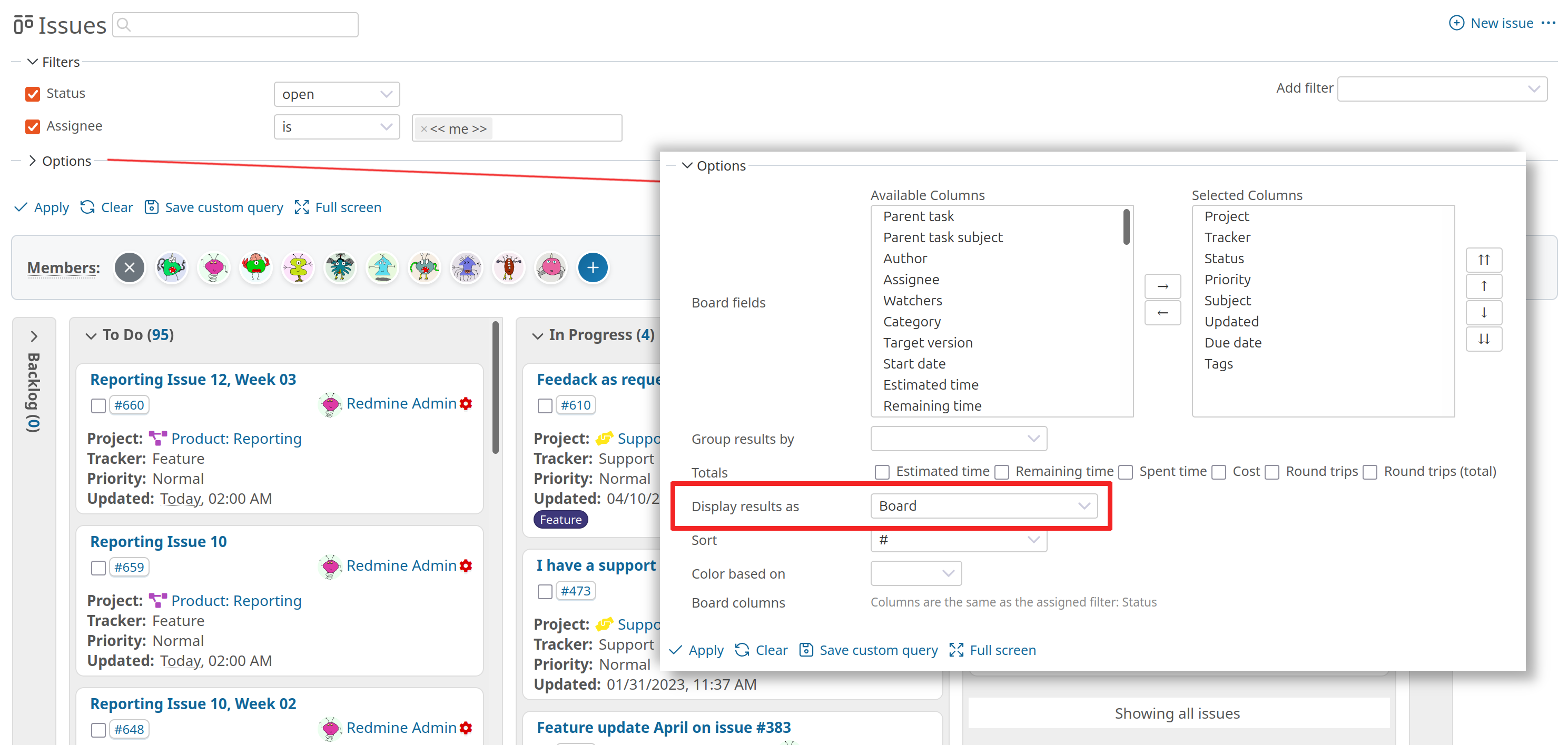
The Reporting Plugin board shows exactly the information that’s relevant to you. Through the filter options under “Columns” you define which fields appear on the ticket cards: Assignee, Priority, Category, Target Version, Custom Fields or other information.
Additionally, you can color-code the cards - by Tracker (Bug, Feature, Support), Priority (Urgent, High, Normal), Assignee, Project or other fields. This makes relevant differences immediately visible: Red cards = Bugs, blue = Features, or each person has their own color.
You save this configuration as part of your custom query. This way, your optimal board view is always available - including filters, column selection, color scheme and sorting.
New Features as of Version 4.3.0
With plugin version 4.3.0, the Taskboard has received two significant enhancements that considerably speed up daily work.
Drag & Drop Support for the Grouping Function
It’s not new that you can group tickets by various criteria: by person, priority, project, tracker, category or target version. What’s special: When you drag a ticket between groups, you change two values at once.
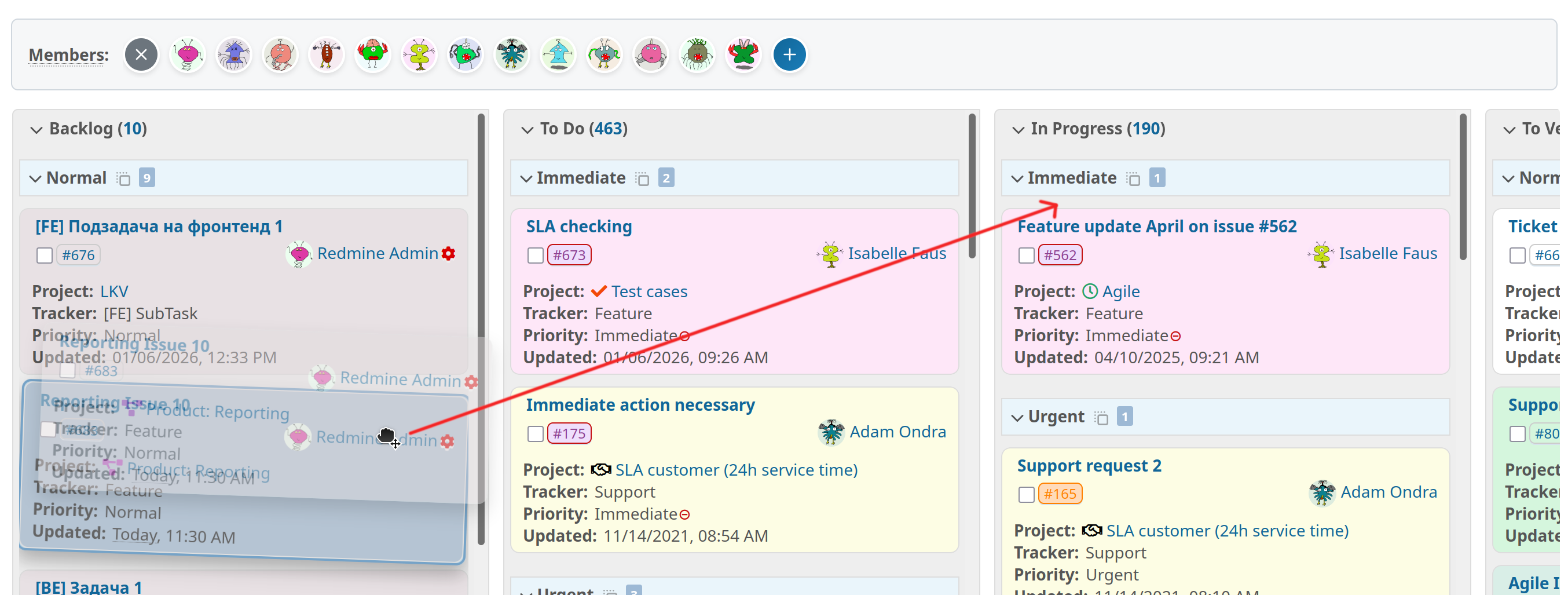
An example: You group by priority. A ticket is at “Normal” with status “New”. You drag it to “Urgent” in the “In Progress” column. The ticket changes status AND is marked as urgent - with a single action. The same works when grouping by person (change assignment), by target version (sprint assignment) or by tracker (correct ticket type).
This function is available for: Project, Tracker, Priority, Category (project-internal only), Target Version and Assignee. For other groupings, drag & drop only changes the status.
Avatar Bar for Quick Assignments
The Avatar Bar shows you the avatars of your team members at the top of the board. You drag an avatar onto a ticket, and it’s assigned. No opening tickets, no dropdown menu, no extra clicks.
The system remembers which people you frequently assign tickets to - these appear automatically in the bar. If someone is missing, you click on the plus symbol and search through all project members.

For both functions - grouping drag and avatar assignment - you can hold the Shift key to add a comment while moving. This is useful when you want to provide context: “Max, this affects your module” or “Production error, please check immediately”.
When is the Taskboard Suitable?
The board works well wherever work flows through defined phases. Typical use cases:
Support and Service: Tickets go through clearly defined steps - from “New” via “In Progress” to “Resolved”. The board immediately shows where tickets are waiting or piling up. The Avatar Bar makes assignment to available team members a matter of seconds.
Development Teams: Whether bug tracking or feature development - the board visualizes progress. Grouping by person shows workload distribution, grouping by version helps with release planning. Color coding by tracker makes bugs recognizable at a glance.
Project Management: For project managers who want to keep track. Grouping by person answers “Who’s working on what?”, by priority shows “What’s important?”, by version visualizes “What’s going into which release?”.
Administrative Processes: Even departments without technical background benefit. Vacation requests, orders or change requests go through workflows. The board makes these processes transparent.
When is the Taskboard Less Suitable?
The board has clear limitations. For very complex tickets with many custom fields, the detail view is better suited - even though you can configure the fields on the board cards, space remains limited. For detailed time tracking and reporting, the list view remains the better choice as it shows all columns simultaneously.
WIP limits per status column are part of the Taskboard - how to use them is described in our article WIP limits in Redmine. If you need strict Scrum methodology with story points and sub-columns beyond that, the Taskboard doesn’t offer these functions natively. Here, dedicated agile tools are better suited.
Sprint Tracking with Burndown Charts
For teams working with sprints or versions, the Reporting Plugin offers Burndown Charts as a dashboard block for the project overview and version list. You can visualize progress either by ticket count or estimated time - for individual projects or across projects. The charts can be integrated into the personal dashboard or project dashboard and complement the board view with metric evaluations. This way you keep track of your sprint progress not only visually in the board, but also quantitatively in the chart.
Integration into Existing Workflows
The Taskboard doesn’t replace the list view, but complements it. You can save different views for different purposes:
- A filter “My Work” with board view for daily work,
- a filter “Time Tracking” with list view for reports,
- a filter “Team Sprint” with board view grouped by person for meetings.
The board configuration - which fields are displayed, which color scheme is active, how grouping and sorting work - you save as part of your custom query. Once set up, it’s available to you at any time. You can share it with your team or keep it to yourself.
Technical Requirements
The Taskboard is part of the Reporting Plugin as of version 4.2.0 (basic drag & drop) and 4.3.0 (advanced functions). If you already use the Reporting Plugin you just need to update to the respective plugin version for usage. The function respects all configured workflow rules and permissions. If a status transition is not allowed, the ticket jumps back and shows a corresponding error message.
The board works on desktop browsers and tablets. On smartphones, usage is limited due to many columns - here the mobile list view remains more practical.
Conclusion
The Taskboard is not an agile tool, but a Visual Workflow Manager. It visualizes your existing processes and makes working with them faster and clearer. The advanced functions as of version 4.3.0 eliminate repetitive clicking and save real time in daily work. With the Reporting Plugin you get:
- a Taskboard with drag & drop (status + assignment)
- Burndown Charts
- Project Burndown for cross-project progress
- Flexible grouping with swimlane-like functionality (as of v4.3.0)
Whether it fits your team depends on whether you work with status-based workflows and value visual overview. The only requirement: The Reporting Plugin must be installed. The board does the rest.
All information about our extensions for Redmine is available on our product page. Customers whose Redmine doesn’t meet the minimum requirements or who prefer to hire someone for the installation and regular maintenance of their Redmine instance have the option to book our Managed Application Hosting for Redmine. Here, the plugin is already part of our hosting offering. The functionality can be extensively tested in our online demo.