
In many companies, employees use additional tools alongside Redmine for simple task management. The typical requirements are:
- Seeing your own open tasks at a glance
- Changing the task status quickly (for example via drag & drop)
- Different views depending on the role: “What do I have to do?”, “What have I created?”, “What is overdue?”
The Reporting Plugin covers these requirements with two functions: counter boxes and the Taskboard.
Counter boxes: issue queries as a number
Counter boxes are compact tiles that you place on the home page or the project overview using the dashboard block “Query groups”. Each of them displays a number that leads to an issue query. One click takes you directly to the corresponding issue list or the board view (depending on the display you have configured).
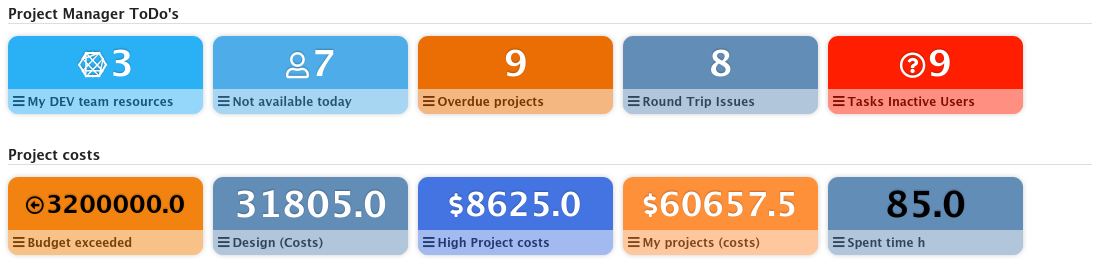
Typical counter boxes for employees
- Assigned to me: All open issues assigned to you
- Overdue: Issues past their due date
- Reported issues: Issues you created yourself
- Due this week: Tasks due in the current week
- Unassigned: Open issues in the project that are not yet assigned to anyone
How it works
Every counter box is based on a saved issue query. Administrators and users with the corresponding permission create those queries.
To set up counter boxes for all users on the home page you need two permissions: to configure dashboard blocks for other users, which administrators have, and to create public queries for other users. As soon as the “Query boxes” function is active and configured in the plugin settings, you are ready to go.
For the counter boxes to be useful for all employees, we recommend setting up issue queries in such a way that they are:
- visible to all users (public query)
- cross-project, so not limited to a single project
- self-referencing, so Assignee = me
This way the query only has to be created once and applies to the entire team. Both globally and project-related.
Setting up counter boxes
- Create an issue query with the desired filters (for example status = open, assignee = current user)
- As the display type select “Board” (not list) and click on “Save query”.
- Fill in the necessary fields (name, visibility, for all projects etc.) and activate the option “Enable counter box”.
- Select a query group, assign a name, a colour, a weighting etc. and click on “Save”.
- The first counter box should appear according to the plugin configuration in the corresponding dashboard block “Query boxes”.
- Continue with further queries.
Taskboard: issues in a Kanban view
The Kanban board of the Reporting Plugin shows issues as cards in columns, ordered by status. You move issues between the columns via drag & drop, which changes their status directly in Redmine.
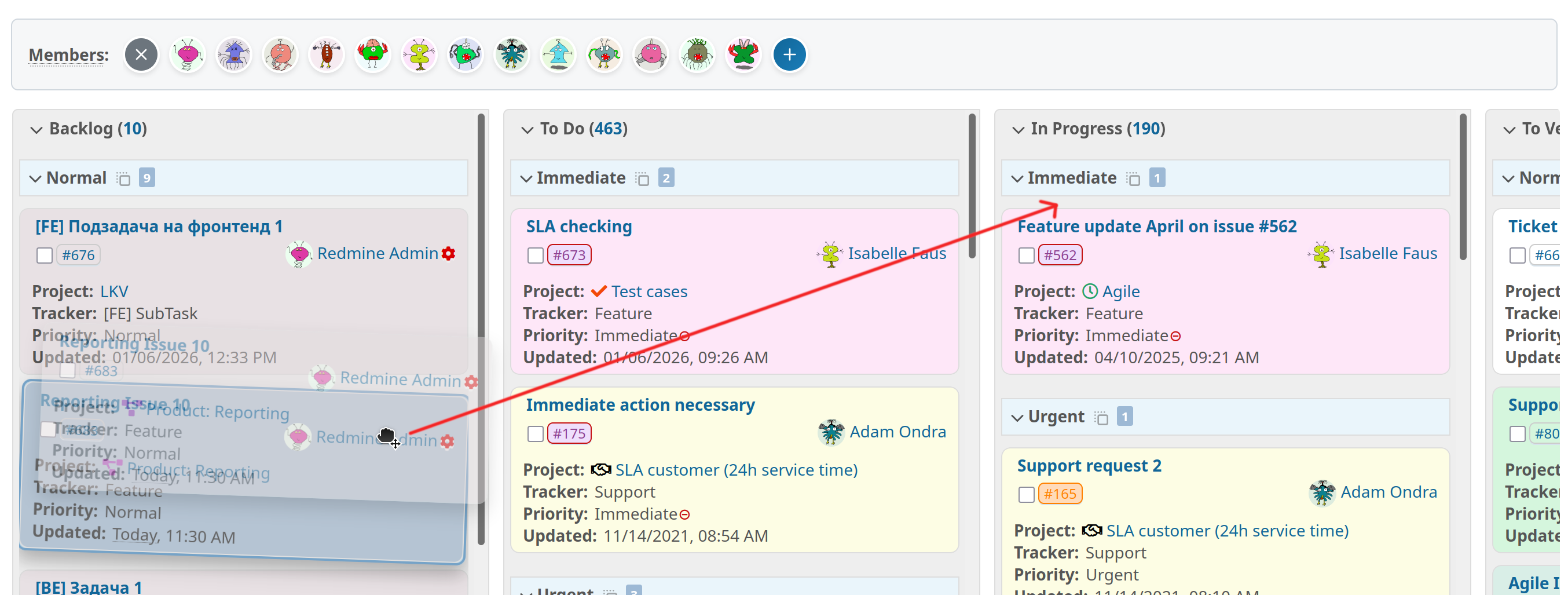
What you can do with it
- Change the status: Drag an issue from “New” to “In Progress” or “Closed”
- Change assignments: Using the avatar bar you can assign issues directly to other employees
- Group: Display your issues grouped by status, priority, category or other fields
- Column overview: Every column shows the total number of issues it contains, so you can see where tasks are piling up
Counter boxes and Taskboard working together
Counter boxes and the Taskboard complement each other. The counter box shows the number and one click opens the list or the board. On the Taskboard itself, every column shows the total number of issues as well.
This results in two levels of overview:
- Home page: How many tasks are there in which category?
- Taskboard: How are the tasks distributed across the status columns?
Mobile access
Redmine is a web application and runs in the browser, including on smartphones and tablets. The interface adapts to smaller screens, a separate app is not required. The quality of the mobile display depends on the Redmine theme in use.
Redmine vs. a separate tool: what to consider
If you already use Redmine, the Reporting Plugin allows you to do without an additional tool. The data stays in the existing system, permissions apply as usual, and there are no licence costs for another product.
Counter boxes give your employees an immediate overview and the drag & drop board supports fast work in Kanban style. Mobile access runs through the browser with the regular login credentials, no app required.
All information about our extensions for Redmine can be found on the product page. The Reporting Plugin is subject to a fee and is available separately or as part of our Business-Class Bundle as well as the Enterprise+ Bundle. The function described here can be tested extensively in our online demo. It is only one of the many useful functions of our Reporting Plugin.