
The project starts, the tasks are distributed and your team is motivated. It does not get better than that. But whoever is not careful now and works on too many tasks in parallel will run into problems by the end of the sprint. From experience we know that every employee is already busy enough with more than 2 tasks at the same time. More issues only create a focus problem. That is exactly what WIP limits are for.
What a WIP limit does
WIP stands for work in progress, meaning work that has been started. A WIP limit defines how many issues should be in a status column at the same time. If “In Progress” has a limit of 5 and holds 8 issues, that is a visible signal: before anyone starts something new, they should finish what is already started.
Why working in parallel is slower
Five issues at once feel like more output than one after another. In everyday project work it is the other way round.
Every switch costs time: You read yourself back in, reconstruct the current state, remember why you solved something a particular way. With five open issues you do this all day long.
Then there is the customer’s point of view. An issue that is 90 percent done is worth as much to them as one nobody has started, namely nothing. They pay for completion and not for progress.
Where the limit sits on the Taskboard
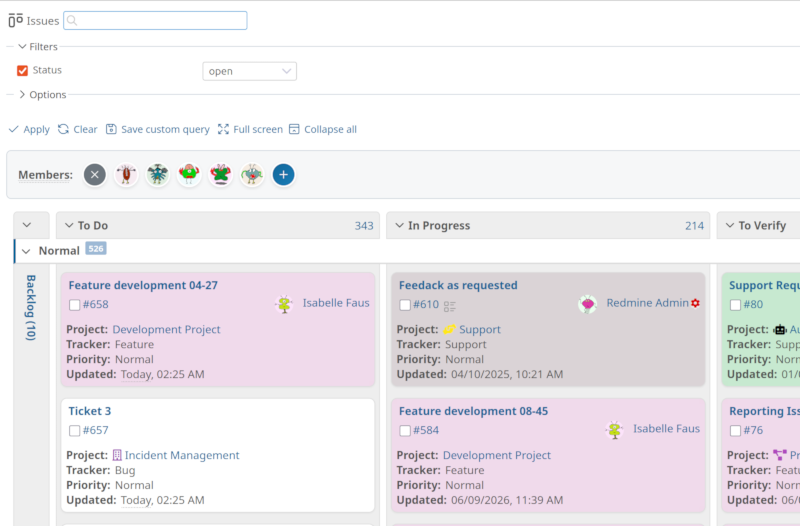
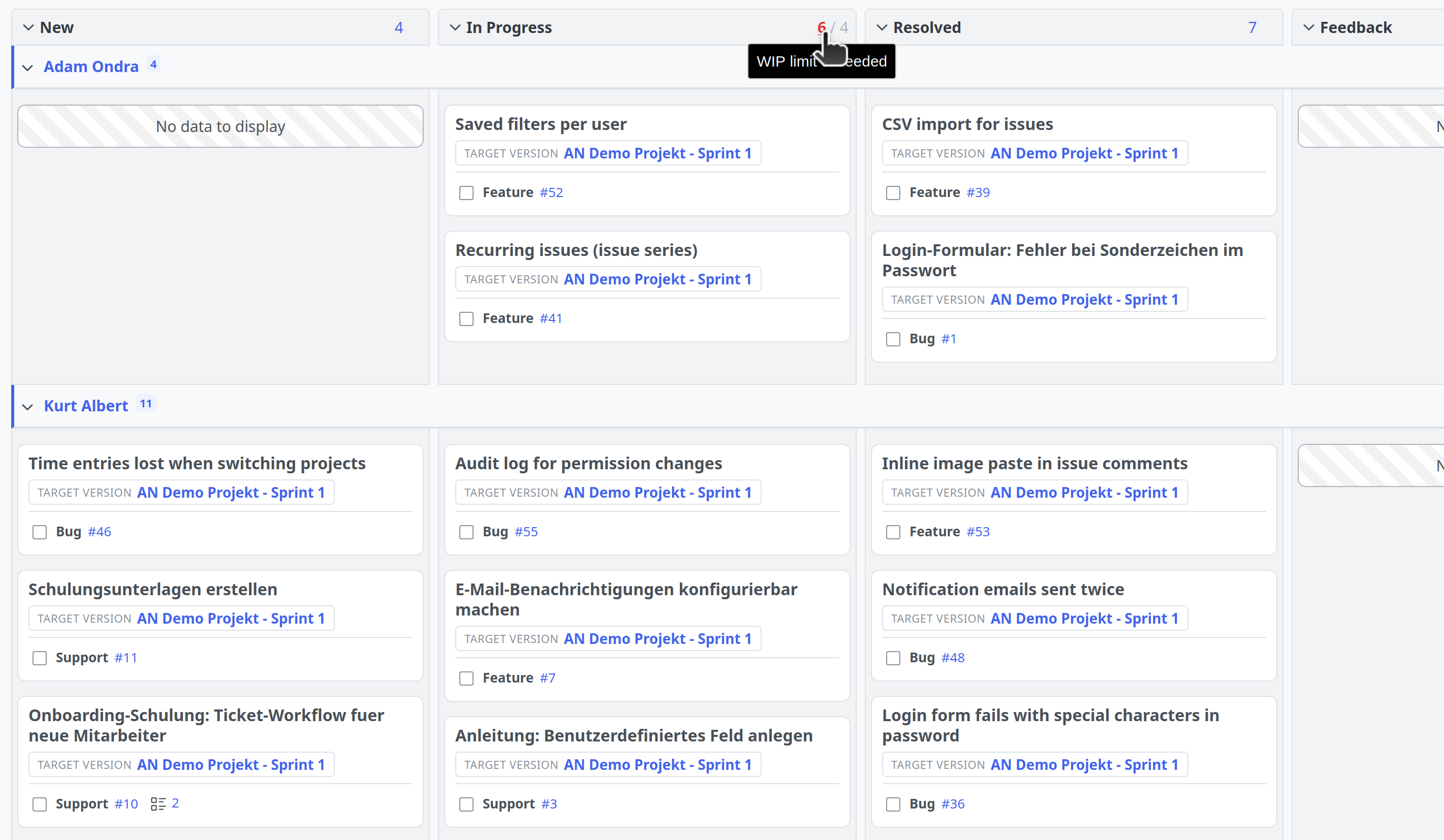
On the Taskboard of the Reporting Plugin you set the limit per status column. The column header then shows the workload as “number / limit”, for example 5 / 3. If the limit is exceeded, the number appears in bold red, and hovering over it shows an explanatory text.
There are two ways to set a limit. Both only work with saved queries and only if you are allowed to edit the query:
- In the query form: When editing the query you find a field per status column in the Options section. Enter the desired number there, empty means no limit.
- Directly on the board: Hover over a column header and click the limit. Enter a number, press Enter, done. Escape cancels.
Because the limit belongs to the saved query, every board can have its own limits. So the board of your support team works with different boundaries than the one of your development team, without the two getting in each other’s way.
There are three things you should know about this:
- The limit does not block anything. You can still drag an issue into a full column, the board then only marks that column. This is intentional, because a limit should start a conversation and not prevent work.
- The limit applies to the entire column, so across all swimlanes. Swimlanes are the horizontal rows a grouped board is split into.
- A limit of 0 means “this column should stay empty”. As soon as an issue sits in it, the column is marked. Practical for columns where nothing may be left lying around.
Which number is the right one?
This is the question that always comes up first. A good starting value:
Number of people in that column plus one.
So five for four developers. That roughly matches the two tasks per person most people handle well, and leaves room for the case where someone gets stuck and has to start something else.
What matters is not the starting value, but what happens afterwards. Watch the board for a few weeks: If you break the limit constantly and nobody cares, it is too low or the team does not take it seriously. If you never reach it, you can save yourself the trouble.
Which columns benefit from a limit:
- In Progress: this is where one almost always belongs, the classic case
- Review: often the actual bottleneck, because reviewing is unpopular and gets left behind
- Backlog: a limit usually makes no sense here, this is where you collect work on purpose
- Waiting for customer: a special case, because the limit shows you how much work is currently hanging outside your control
What happens when the limit kicks in
As soon as the column turns red, a decision is due.
The right reaction is rarely “raise the limit”. Usually the question is: Why are the issues in this column not moving forward? From practice we mainly know three reasons:
- An issue has been waiting for feedback for days that nobody is chasing up
- Two issues are actually blocked, but nobody has made that visible
- The column before it pushes work forward faster than this column can process it
In all three cases a higher limit does not help. It would only make the problem invisible again.
Two functions of the board complement each other here. The red lock on a card shows that another, still open issue is blocking this one. Together with an exceeded limit you see not only that something is stuck, but also what on.
Set the limit as a team
WIP limits only work if the team stands behind them. A number set by project management alone and ignored by everyone stays a red digit in the column header.
So set the first limit together and not alone at your desk. Clarify beforehand what happens if you exceed it, even if that only means going through the column briefly in the next daily.
How to get started
- Open your issue list and switch to Board under Options at Display results as
- Save the view as a custom query, ideally shared with your team
- Set a limit on the “In Progress” column: number of people plus one
- Watch it for two to three weeks and address the limit in your team when it turns red
- Adjust the number once you have gathered enough experience
That is all it takes to start. You can add all further columns later.
All information about our extensions for Redmine can be found on the product page. The Reporting Plugin is subject to a fee and is available separately or as part of our Business-Class Bundle as well as the Enterprise+ Bundle. The function described here can be tested extensively in our online demo.