
If you work with the classic issue list in Redmine and your team is a bit larger, you probably know the problem: You scroll through endless rows to find out where you currently stand. Which issues are in progress? Where are things stuck? Who is working on what?
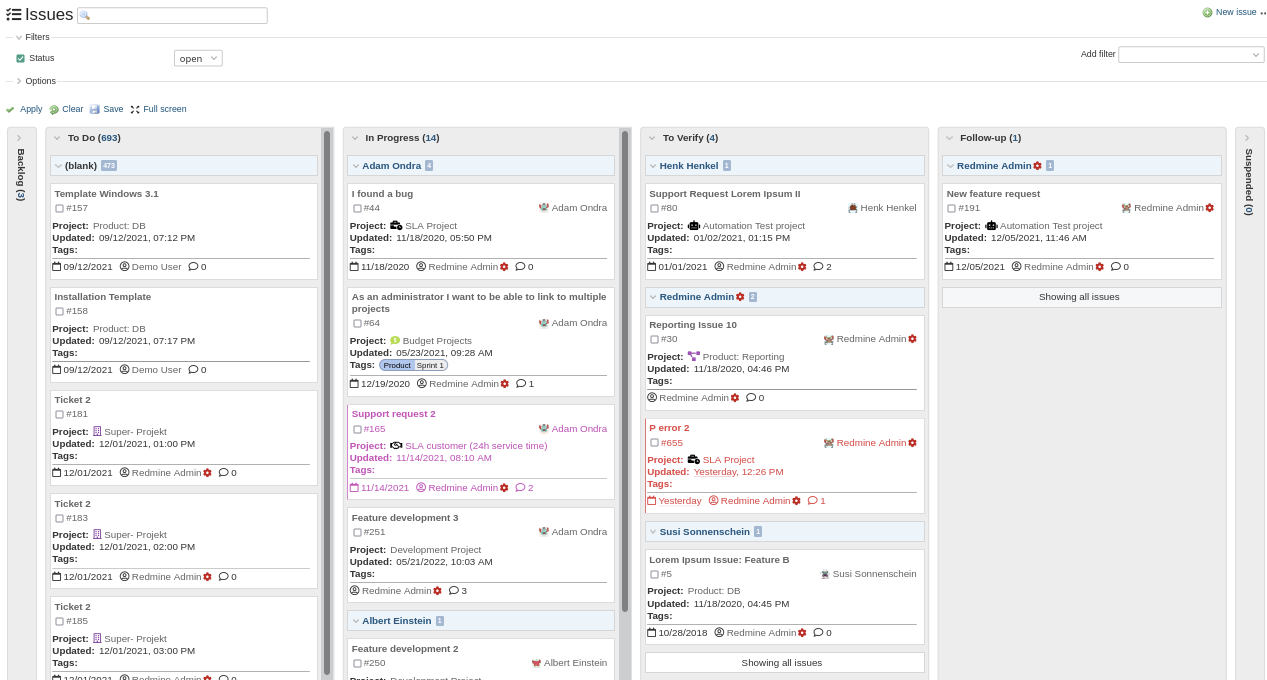
The task board view in the Redmine Reporting Plugin offers you a different perspective on your issues. It works as a visual tool for any kind of structured work.
What is the task board view?
The issue list shows you details, the task board shows you the flow. Your issues sit as cards in status columns, from “New” through “In Progress” to “Closed”. You see right away where work is moving and where it is stalling.
You may know the principle from tools like Trello or Jira. In Redmine it works in a similar way, but it uses your existing issue structure and workflows. The data stays the same, only the perspective changes. And that happens quickly and easily with just a few clicks.
Do I need Scrum or Kanban for this?
No. That is a widespread misunderstanding. Task boards work wherever tasks pass through different phases, which happens in almost every project regardless of its size.
Example of a classic project:
You have a project plan with the phases concept → development → test → approval. With the task board you immediately see how many tasks are stuck in which phase. If 15 issues pile up in testing but only 2 are in development, you know where you need to take action.
Example of a support team:
Your issues follow this path: received → assigned → in progress → waiting for customer → resolved. The board shows you whether issues are waiting too long for customer feedback or whether a team member has too many open support requests.
Example of maintenance:
Fault reports have the following statuses in your case: reported → prioritised → being fixed → fixed → confirmed. With the board you notice when critical faults accumulate in “prioritised” without anyone resolving them. That is the point where you might need additional manpower.
What are the concrete benefits?
Faster meetings
Instead of scrolling through lists in your daily or status meeting, you open the board. Everyone immediately sees what is going on. The discussion shifts from “What is the status?” to “Why is issue X not moving forward?”
Spotting bottlenecks
If 20 issues pile up in “Review” but only 5 are “In Progress”, you have a problem in your review process. In the list you would only see this after tedious filtering.
Team coordination
By grouping according to “Assignee” you see the distribution within the team. Does one person have 15 open issues and another only 3? Time for a redistribution.
Drag & drop (from version 4.2.0)
You move issues between status columns using the bulk edit function or, new from version 4.2.0, with your mouse. That saves time in sprint planning and in a joint discussion with the team. You see which issues sit in the “Backlog” status and pick out those that need to be worked on now.
When should you stick with the list?
The board is no cure-all. For detailed evaluations, complex filtering or work with many different fields, the list view remains the clearer choice.
The board is a working tool for everyday use, for active work, status overview and team coordination. The list is your analysis tool, for planning, prioritisation and detailed analysis. You can also export or print it.
Conclusion
The task board view of the Reporting Plugin does not replace the issue list, it complements it. Whether it makes sense for you depends on how you work:
- Do you regularly need a quick overview of many issues? Yes, give it a try.
- Do you mainly work with filters and exports? Probably less relevant.
- Do you coordinate a team and provide regular status updates? Definitely worth a look.
You do not have to choose between them. With the Reporting Plugin both are available in parallel, so you use whichever fits the situation.
Where do I find the task board view?
Activating it is very simple:
- In Redmine, open the Issues area (either project-related or across projects)
- Scroll to the Options section below the filters
- Under Display results as: select the option Board
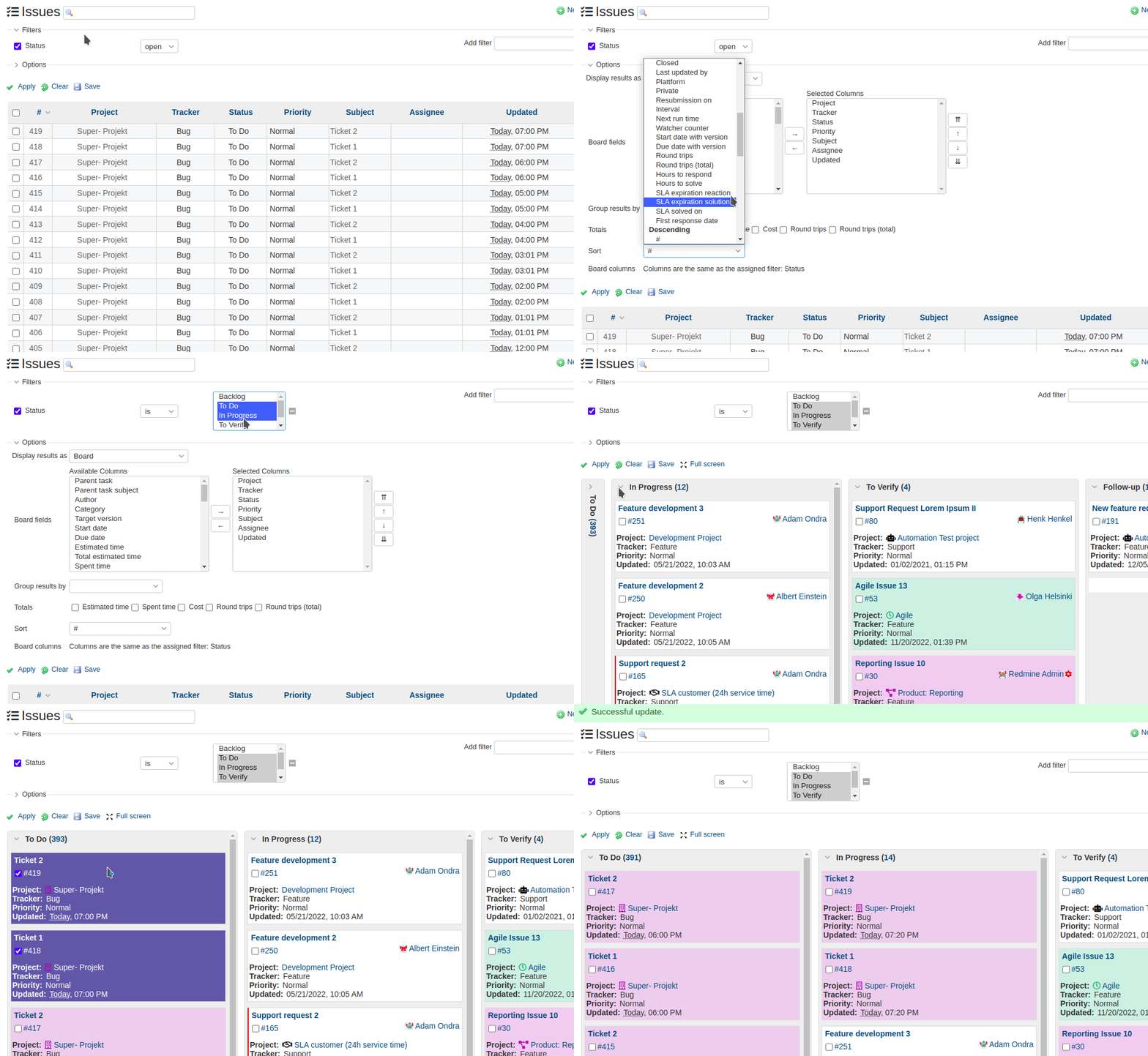
Your issue list now switches to the board display. All your usual filters and settings stay active, you only see a different representation of the same data.
Tip: From version 4.2.0 there is a quick access button next to drag & drop. It takes you to the task board view without navigating through the options.
If you use the board view frequently, you can also save it as a personal query and define it as the default view in your user settings. The board then opens automatically with the defined filters when you call up the issue area.
All information about our extensions for Redmine can be found on the product page. The Reporting Plugin is subject to a fee and is available separately or as part of our Business-Class Bundle as well as the Enterprise+ Bundle. The function described here can be tested extensively in our online demo. The drag & drop feature is part of plugin version 4.2.0 (check the plugin update releases and minimum requirements).